Dell 3110 2-in-1 Chromebook Repair Video Tutorial
Updated: Sep 22
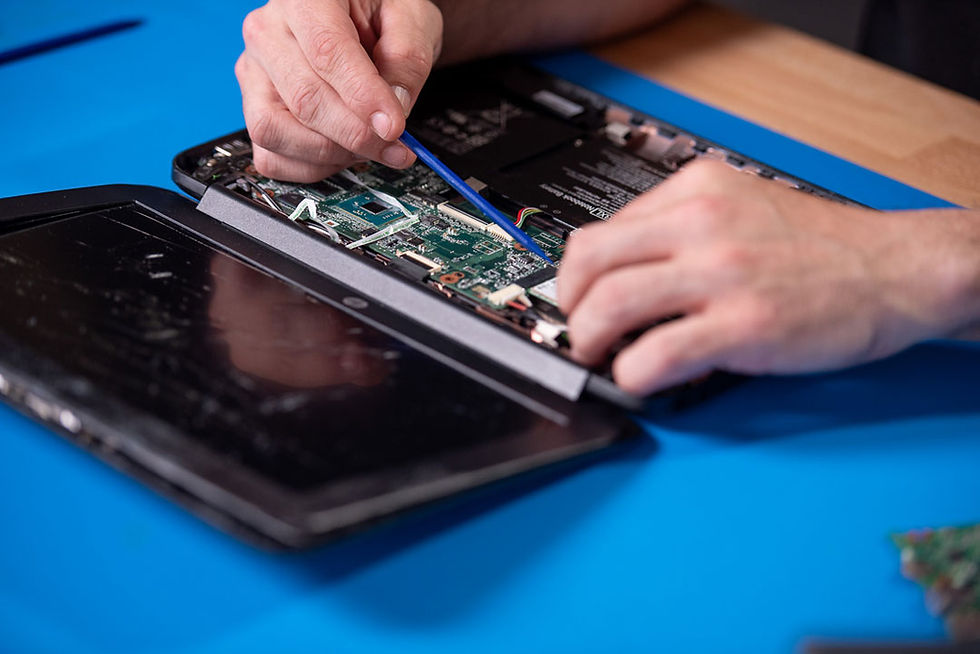
This is a step-by-step tutorial on how to replace the LCD, Palmrest, Battery and Motherboard on a Dell 3110 2-in-1 Chromebook. Watch this Dell 3110 2-in-1 Repair Video to get started!
🔧 What You’ll Learn in this Dell 3110 2-in-1 Repair Video:
LCD - In this comprehensive tutorial, we’ll guide you through the full LCD screen repair/replacement process — from disassembly to reassembly. Whether your screen is cracked, flickering, or showing dead pixels, follow this step-by-step guide.
Motherboard - The complete process of replacing the motherboard in a Dell 3110 2-in-1 Chromebook, from opening the chassis to testing everything after installation. Whether you're dealing with a dead board, power issues, or any internal hardware failure, this step-by-step guide will help you get your device back up and running.
Palmrest - Learn how to replace the palmrest / top case on a Dell 3110 2-in-1 Chromebook step by step. Whether your palmrest is cracked, warped, or worn out, this video walks you through safe disassembly, removal, and installation to restore your device’s look and feel.
Battery - In this detailed tutorial, we’ll walk you through replacing the battery of a Dell 3110 2-in-1 Chromebook step by step. You’ll learn how to safely disassemble, diagnose the issue, replace or repair faulty parts, and reassemble it correctly. This guide is ideal whether you’re dealing with display problems, keyboard issues, hinge faults, or other hardware issues on the Dell 3110 2-in-1 model.
✅ Tools & Parts Used
Precision screwdrivers (Phillips, Torx as needed)
ESD (anti-static) wrist strap
Spudger/plastic pry tools
Replacement LCD compatible with the Dell 3110 2-in-1
💡 Pro Tips & Best Practices:
Always unplug and remove any power sources before starting
Use an anti-static wrist strap or mat
Organize screws and small parts so you don’t lose track
Handle the new LCD gently — avoid pressure or scratches
Double-check all connections before powering on
⚠️ Disclaimer: This video is for educational purposes only. Attempt repairs at your own risk. We are not responsible for any damage, data loss, or injury. If you’re not comfortable with electronics, consult a professional.

Thanks for watching our Dell 3110 2-in-1 Chromebook Video Tutorial!